You’ve probably seen “Free” all over the Roku Channel Store—then hit a wall: long ad breaks, a sign-in prompt, or a “rent/buy” button mixed into the same app. On Roku, “free” usually means ad-supported streaming (FAST channels and on-demand libraries) where you pay with attention instead of a monthly fee. That’s a fair trade if you expect it, and frustrating if you don’t.
The other common “free” model is a channel that costs nothing to install but requires authentication with a TV provider (or pushes you toward an upgrade). Free also doesn’t always mean unlimited: some apps rotate titles, restrict live feeds by location, or cap features unless you create an account. Knowing these patterns makes it easier to spot the good options fast.
Before you pick channels, define your watching goal
You’ll get better results if you treat free Roku channels like a toolbox, not a buffet. Start with one primary goal: “live background TV,” “a nightly movie,” “local news,” “kids-safe cartoons,” or “one niche interest I can dip into.” That goal decides whether you need a simple live guide, a strong on-demand library, or a channel that updates daily.
Then set two practical preferences: how much advertising you can tolerate, and whether you’re willing to create an account. If you want quick, no-friction viewing, prioritize channels that open straight into a live grid or a curated home screen. If you’re trying to replace a paid service, expect trade-offs: rotating catalogs, uneven search, and occasional “rent/buy” tiles that you’ll need to ignore.
Ads, sign-ins, and location limits: the hidden constraints

You’ll run into three friction points fast: ads, accounts, and geography. With truly free channels, ads aren’t just pre-roll—they can interrupt live streams, repeat the same spots, and make “channel surfing” feel slower than cable. A practical trick is to test a channel for one full episode or 20 minutes of live TV before you commit to keeping it.
Sign-ins are a separate issue from payment. Some apps want an account to save progress, improve recommendations, or unlock certain streams; others use sign-in to gate content behind a TV provider. Watch for wording like “Sign in with your provider” versus “Create a free account.” Location limits show up most with local news, regional sports, and some live feeds, and a VPN won’t always help on Roku. The cost is time: installing five “free” channels can still mean five different logins and menus to learn.
The top 8 free Roku channels worth installing first
You’ll notice most worthwhile free channels fall into two buckets: “a lot of live channels with a guide” and “a focused library that’s easy to browse.” Start with a baseline set you can rely on, then add specialty picks based on what you actually watch.
The Roku Channel is the default anchor because it blends free live channels with on-demand movies and shows, and it usually feels well-integrated with Roku search. Just expect some tiles that lead to paid rentals mixed into the same menus. Pluto TV is the best “turn it on and surf” option for many people: a large live lineup with a familiar grid and plenty of themed channels, with ads that can be frequent but predictable. Tubi is the strongest general-purpose free on-demand library for movies and TV, especially if you want something that looks like a streaming catalog instead of a live guide; its downside is that titles rotate and the quality can be uneven if you browse at random. Freevee (Amazon’s free service) is a solid pick for recognizable shows and movies in a cleaner interface, but it can push you toward an Amazon sign-in for the smoothest experience.
For live TV that feels a bit closer to a traditional channel lineup, Plex offers free live channels plus a personal-media angle if you ever want to stream your own files—though the interface can feel busy if you only want simple TV. Xumo Play is another good live-grid alternative that’s straightforward for background viewing. For news, CBS News is a reliable “hit play and you’re live” channel that doesn’t require a cable login; pair it with Haystack News if you want a customizable mix that pulls in national and local clips (availability varies by station and location).
The practical constraint with all eight is time, not money: each one has its own navigation style, ad load, and search quirks. Install two “live guide” apps and one “on-demand library” app first, use them for a couple of evenings, and then delete anything that makes you fight the interface or constantly bumps you into paywalls.
Quick setup checklist to make free channels easier to use
You’ll save a lot of friction if you treat setup like a one-time cleanup pass. First, update Roku OS, then restart the device (Settings > System) so new channels load cleanly and search results stay consistent. Add only three channels at first (one live guide, one on-demand, one news), then move them into the top row of your home screen so you’re not hunting every night. For each channel, open Settings inside the app and disable autoplay previews, limit notifications, and turn off any “personalized ads” toggle if it’s offered.
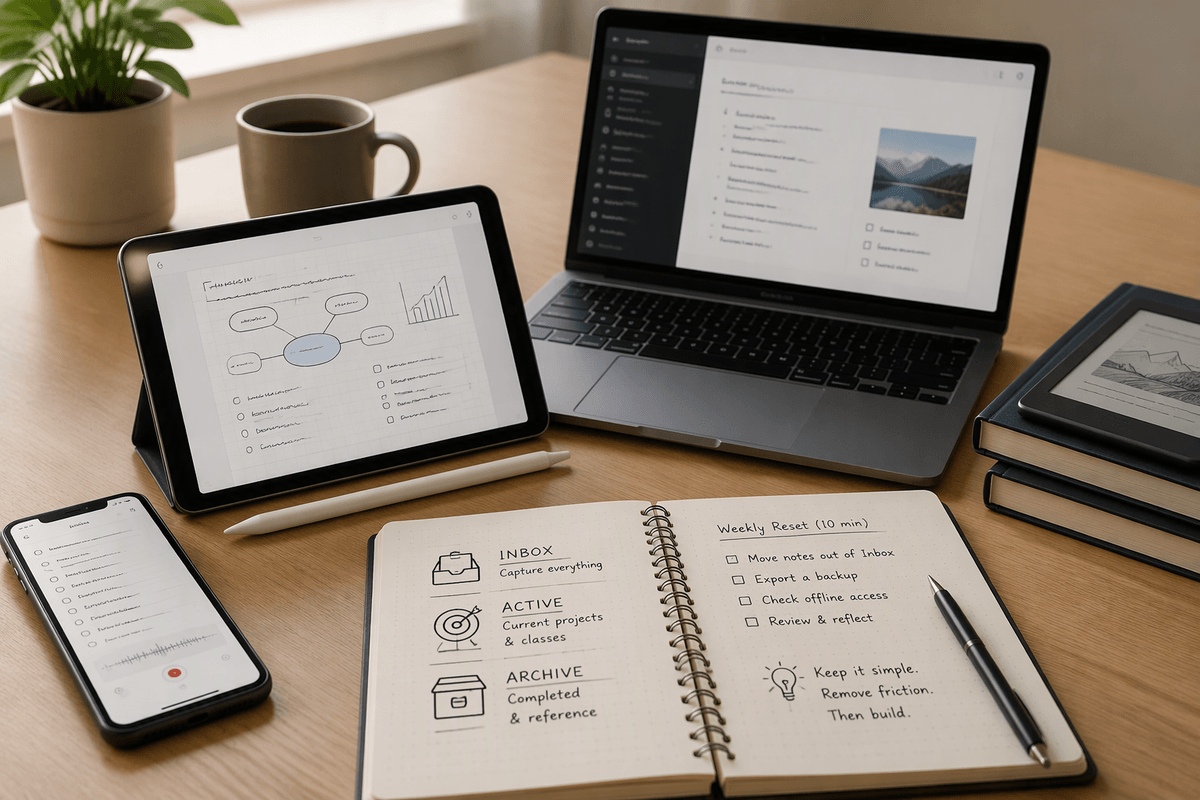
Decide on accounts up front: if a channel works without sign-in, try it that way for two days and only create an account if you miss watchlists or “continue watching.” Keep a notes app with which channels have logins, because password resets are the real hidden cost of “free.” Finally, run a quick search test (“action movie,” “kids,” “local news”) so you know whether to use Roku’s global search or the channel’s own search.
How to stay safe: permissions, privacy, and sketchy clones

You’ll occasionally see “copycat” channels that mimic a well-known name or logo, then bury you in ads, upsells, or odd sign-in screens. A simple rule: install from the Roku Channel Store, but still verify the publisher name and read a few recent reviews for patterns like “won’t load,” “keeps charging,” or “can’t cancel.” If a “free” app immediately asks for payment details, back out—legit ad-supported channels don’t need a credit card to start.
Keep privacy and permissions boring. Decline optional tracking prompts, avoid linking accounts unless you want watchlists across devices, and don’t reuse your Roku PIN as a streaming password. If kids use the TV, set a Roku PIN for purchases and remove channels that mix free tiles with rent/buy buttons, because misclicks are a real cost—even when the channel itself is free.
A simple “starter pack” mix and what to try next
If you want a “starter pack” that covers most nights, install The Roku Channel (general hub), Pluto TV or Xumo Play (live guide for channel surfing), and Tubi (on-demand movies/TV). Add CBS News for a simple live news feed, then stop—five apps is usually the limit before menus and ads start wasting your time. If kids watch, keep the mix tighter and avoid channels that blend free episodes with rent/buy tiles.
After a week, make one targeted add: Haystack News if you want local clips, Plex if you like live channels plus personal media, or Freevee if you want more recognizable titles and don’t mind an occasional account prompt.